If you are trying to choose the right OG image size, the short answer is simple: start with 1200 x 630 pixels.
That size is the safest default for standard Open Graph previews across Facebook, LinkedIn, Slack, Discord, and many other link-preview surfaces. It gives you a wide canvas, enough room for readable text, and a layout that usually survives platform cropping better than smaller images.
But that is only the starting point. If you publish product pages, blog posts, changelog entries, or landing pages regularly, the real question is not only "what OG image size should I use?" It is:
- What size works as the default?
- When do I need a second variant?
- How do I keep text readable after crops and compression?
- How do I avoid rebuilding assets for every platform manually?
This guide breaks it down.
The Best OG Image Size for Most Pages
If you only create one image per URL, use:
- 1200 x 630 px
- 1.91:1 aspect ratio
That is the standard recommendation most teams use for Open Graph previews because it works well across the broadest set of platforms and sharing contexts.
Why it works:
- It is large enough to look sharp on high-density screens
- It gives you room for a headline, product image, and branding
- It fits the common wide-card preview layout used by major platforms
- It is easier to reuse for products, blog posts, and website pages
For most teams, this should be the baseline template size inside your OG image workflow.
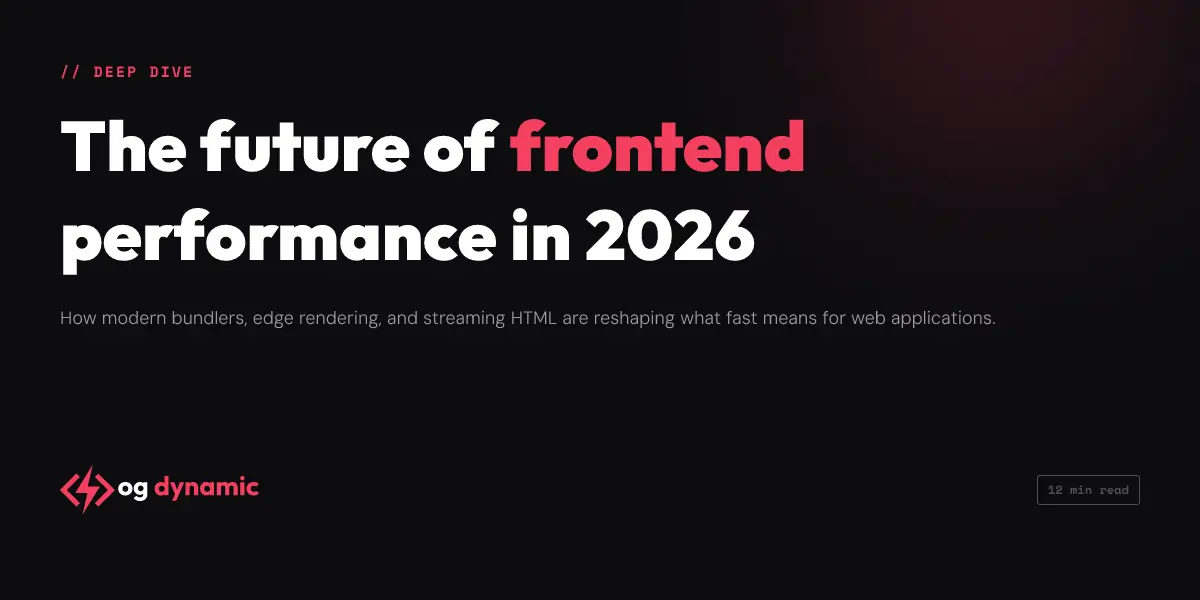
A wide 1200 x 630 canvas gives you enough room for a headline, image, and brand mark without forcing everything into the edges of the card.
Why OG Image Size Matters More Than People Think
When the size is wrong, the preview usually fails in one of four ways:
1. The image looks soft or compressed
Small images often get stretched by the platform. That makes product shots look cheap and text look fuzzy.
2. The text becomes unreadable
Even if the image dimensions are technically valid, tiny type breaks once the card is rendered in a crowded mobile feed.
3. The edges get cropped
Important content placed too close to the edge can disappear in alternative layouts, smaller cards, or platform-specific crops.
4. The preview feels generic
If the size forces you into a weak layout, the preview loses visual hierarchy. The result is a share card that does not communicate what the page is about quickly enough.
OG image size is not only a technical setting. It directly affects clickability, clarity, and perceived quality.
The Universal Rule: Design for 1200 x 630 First
If you want one repeatable answer for the og image size keyword, this is it:
Use 1200 x 630 as your default Open Graph image size.
That recommendation is especially useful for:
- Product pages
- Blog posts
- Collection pages
- Changelog posts
- Documentation pages
- Feature pages
- Comparison pages
- General website landing pages
For most businesses, building every OG template around this canvas is the simplest and safest system.
What About X Card Image Size?
If you want a dedicated X image size, use 1200 x 600 pixels.
That matches the 2:1 ratio used by X summary cards with large images and is the most practical recommendation when you want a cleaner X-specific crop.
X's documentation lists a minimum of 300 x 157 pixels for that format, with support up to 4096 x 4096 pixels. In practice, 1200 x 600 is the clearer answer for most teams because it gives you enough resolution while matching the expected card shape.
That creates two practical options:
Option 1: One universal image
Use 1200 x 630 for your standard og:image and also let it power your X preview. This is the simplest setup and is often good enough.
Choose this when:
- Speed matters more than perfect platform tailoring
- You want one image per URL
- Your design keeps important content inside a safe center area
Option 2: Separate X variant
Create a second image at 1200 x 600 or another strict 2:1 size for twitter:image when you want tighter control over the X card layout.
Choose this when:
- Your design uses text near the edges
- Your product image needs stricter framing
- You care about pixel-perfect previews on X
- Your image generation stack can output multiple variants automatically
This is one of the reasons ogdynamic supports dedicated social-preview output rather than forcing one static layout everywhere.
The Safe Zone Matters Almost as Much as the Canvas
People often ask for the best OG image size when the real issue is layout safety.
Even on a correct 1200 x 630 image:
- headlines can be too close to the top edge
- logos can sit in crop-prone corners
- CTA text can get pushed out of view
- product photos can feel cramped once a card is reduced on mobile
The fix is to keep critical content inside a generous inner frame.
A practical rule:
- avoid placing key text flush to any edge
- keep logos, prices, and product names toward the middle band
- use fewer words than you think you need
- test the preview as a small card, not only as a full-size design
In other words, the best OG image size still needs a crop-safe layout.
Best OG Image Size by Use Case
The canvas can stay similar while the content emphasis changes.
Product pages
Start with 1200 x 630 and prioritize:
- product image
- product name
- price or price label
- brand mark
- one short value statement
For store pages, the common mistake is trying to fit specs, reviews, discount copy, CTA text, and branding all at once. The size is enough. The hierarchy is usually the problem.
Blog posts and articles
Start with 1200 x 630 and prioritize:
- article title
- category or author
- subtle brand identity
- high-contrast background
For editorial content, the title has to survive a tiny preview. That means fewer words on the image than on the page headline.
Landing pages and SaaS pages
Start with 1200 x 630 and prioritize:
- page or feature name
- screenshot or visual cue
- brand identity
- short supporting line
This works especially well for feature launches, comparison pages, changelog posts, or pricing announcements.
File Format and Weight Tips
Correct dimensions alone are not enough. File quality matters too.
Use these defaults:
- PNG when you need crisp text and UI elements
- JPG when the preview is photo-heavy and you want smaller file sizes
- WEBP when the target platform and workflow support it cleanly
Also:
- keep the file visually clean, not overloaded
- avoid huge file sizes for no reason
- export at the exact target dimensions whenever possible
- test dark and light areas for contrast before publishing
If the image is visually busy, the card often feels worse even when the dimensions are technically correct.
Common OG Image Size Mistakes
Using tiny source images
If the original asset is too small, increasing the canvas later does not restore quality.
Designing only for desktop
Most previews are consumed on mobile, where even a good layout can become unreadable if text is too thin or too long.
Treating every platform exactly the same
One image can work across many channels, but some platforms still crop and present cards differently.
Ignoring the text-to-image ratio
A 1200 x 630 image filled with five lines of text is still a bad preview.
Shipping only one generic site-wide image
This is the biggest missed opportunity. Product pages, blog posts, and landing pages should not all share the same fallback visual.
Recommended Workflow for Teams
If you publish lots of URLs, the most practical workflow is:
- Build your default templates at 1200 x 630
- Keep all key content inside a crop-safe center area
- Add a second X-focused variant only when needed
- Use dynamic fields so each product, post, or page gets its own preview
- Reuse brand presets so the output stays consistent
That is the difference between occasionally making OG images and turning them into a reliable publishing system.
A Simple Meta Tag Setup
At minimum, your page should define:
<meta property="og:title" content="Your page title" />
<meta property="og:description" content="Your page description" />
<meta property="og:image" content="https://example.com/og-image.jpg" />
<meta property="og:url" content="https://example.com/page" />
<meta property="og:type" content="website" />
For X, you can also add:
<meta name="twitter:card" content="summary_large_image" />
<meta name="twitter:image" content="https://example.com/x-image.jpg" />
If you want one image generator to serve products, blog posts, and landing pages without manual export work, see the documentation for GET and POST payload examples.
Final Answer: What OG Image Size Should You Use?
If you need one direct answer for the keyword:
The best OG image size for most pages is 1200 x 630 pixels.
Use that as your default for Open Graph previews. Then create a dedicated X-friendly variant, typically 1200 x 600, when your design needs a stricter 2:1 layout.
That approach gives you:
- a reliable default
- cleaner previews across networks
- more readable text
- fewer crop problems
- a system you can reuse for every new URL
If you want to see this applied in practice, read 5 Open Graph Image Mistakes That Are Killing Your Click-Through Rate or generate a branded preview in the image builder.