---
title: 'What Is an OG Image? The Practical Guide to Better Social Previews'
meta_title: 'OG Image Guide: What It Is and How to Create One'
meta_description: 'Learn what an OG image is, why it matters for social previews, the best size to use, and how to create branded OG images for every page.'
excerpt: 'An OG image controls how your link looks when shared. Learn the essentials, common mistakes, and a repeatable workflow for better social previews.'
categories:
- 'Guides'
- 'Social Media'
keywords:
- 'og image'
- 'what is an og image'
- 'open graph image'
- 'og image generator'
- 'social preview image'
---
An **OG image** is the image that appears when someone shares your page on social platforms, messaging apps, and collaboration tools. It is controlled by the `og:image` meta tag in your page's HTML.
That sounds technical, but the business impact is simple: your OG image is often the first visual impression of your page. Before someone reads your full title, opens your product page, or scans your article, they see a preview card. If that card looks clear, branded, and relevant, the link has a better chance of being clicked. If it looks random, blurry, or generic, the link is easier to ignore.
For a SaaS, ecommerce store, blog, documentation site, or portfolio, OG images are not decoration. They are part of your distribution system.
## What Does OG Image Mean?
OG stands for **Open Graph**, a metadata protocol used by platforms to understand how a web page should appear when shared.
The most common Open Graph tags are:
```html
```
The `og:image` tag tells platforms which image to show in the preview. Without it, platforms may guess by pulling a random image from the page. That fallback is rarely the best image for clicks.
## Where OG Images Appear
OG images can appear when a link is shared on:
- Facebook
- LinkedIn
- X
- Slack
- Discord
- WhatsApp
- iMessage
- Telegram
- other apps that generate rich link previews
Each platform renders preview cards differently, but the pattern is similar: title, description, URL, and image. The image usually takes the most visual space, so it carries much of the responsibility for stopping the scroll.
## Why OG Images Matter
A good OG image helps people understand what they are about to click.
That matters because shared links usually compete in crowded places: social feeds, group chats, community channels, newsletters, and team workspaces. In those environments, people make fast decisions.
A strong OG image can communicate:
- what the page is about
- who published it
- why it is worth opening
- whether the link feels credible
- whether the content matches the reader's current intent
A weak OG image does the opposite. It can make a useful page feel unfinished, low trust, or irrelevant.
## The Best OG Image Size
For most pages, the best default OG image size is:
**1200 x 630 pixels**
That size uses a wide 1.91:1 aspect ratio and works well across most standard Open Graph previews.
Use it for:
- product pages
- blog posts
- landing pages
- documentation pages
- changelog entries
- feature pages
- portfolio pages
- comparison pages
If you want a deeper sizing breakdown, read the [OG image size guide](/blog/og-image-size-guide). For most teams, though, 1200 x 630 is the right starting point.
## What Should an OG Image Include?
The best OG image is not always the prettiest image. It is the image that makes the page's value obvious.
For a product page, include:
- product name
- product photo
- price or offer
- brand mark
- one short value statement
For a blog post, include:
- article title or short hook
- category or topic
- brand identity
- readable contrast
For a SaaS landing page, include:
- product or feature name
- clear benefit
- screenshot or interface cue
- brand identity
For a documentation page, include:
- topic name
- product name
- simple visual cue
- clean, readable typography
The goal is not to fit everything onto the image. The goal is to make the link easier to understand at a glance.
## A Simple OG Image Checklist
Before you publish, check these basics:
- Is the image 1200 x 630 pixels?
- Is the main text readable on mobile?
- Does the image clearly match the page topic?
- Is the branding consistent with the rest of the site?
- Are important elements away from the edges?
- Does the image still work when compressed or cropped?
- Does the page include `og:title`, `og:description`, `og:image`, and `og:url`?
- Have you tested the final URL in the platforms where you share most often?
Most OG image problems come from skipping one of those steps.
## Common OG Image Mistakes
### Using one generic image for every page
This is the most common missed opportunity. If every page uses the same logo card, every shared link looks the same. A product page should show the product. A blog post should reflect the topic. A feature page should show the feature.
### Reusing the page hero without checking the crop
Hero images are usually designed for the page, not for social previews. They may be too tall, too wide, too busy, or missing text once cropped into a preview card.
### Adding too much text
An OG image is not a poster. If the card includes a long headline, subtitle, CTA, badge, date, author, logo, and paragraph, nothing gets read.
### Ignoring mobile readability
Most preview cards are seen small. Thin type, low contrast, and long text blocks fail quickly on mobile.
### Forgetting platform caching
Platforms often cache preview metadata. If you update an OG image but the old one still appears, the platform may need to re-scrape the page.
For more examples, read [5 Open Graph Image Mistakes That Are Killing Your Click-Through Rate](/blog/5-og-image-mistakes).
## How to Create an OG Image
You have a few options.
### Option 1: Design one manually
You can create an image in a design tool, export it at 1200 x 630, upload it, and add the URL to your page metadata.
This works for occasional pages, but it becomes slow when you publish often.
### Option 2: Use a static template
You can create a reusable template for blog posts, products, or landing pages. This is better than starting from scratch, but you still need to manually duplicate and edit the design for every new page.
### Option 3: Use a dynamic OG image workflow
A dynamic workflow uses reusable templates and page-specific fields. Instead of designing every image manually, you define the layout once and change the content for each URL.
That is the workflow ogdynamic is built for.
With ogdynamic, you can:
- choose a template
- customize content and styling
- generate a hosted OG image URL
- reuse templates for many pages
- pass dynamic values through URL parameters or JSON payloads
- create product, blog, article, and landing page previews from the same system
For stores, this means every product can have its own branded preview. For content teams, every article can look intentional. For SaaS teams, every feature, changelog, and documentation page can share with a preview that matches the product.
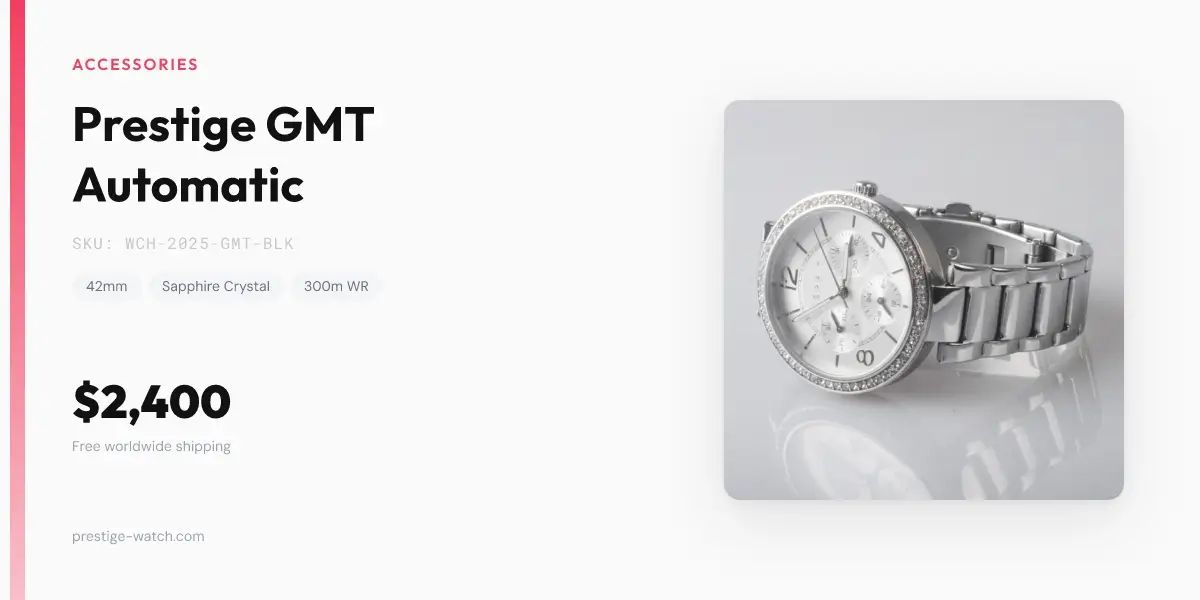
A reusable template keeps the structure consistent while letting the page-specific title, image, tag, or format change from one URL to the next.
## Example OG Image Meta Tags
After you have an image URL, add it to your page head:
```html
```
For X, add:
```html
```
The exact implementation depends on your CMS or framework, but the principle stays the same: generate the image, host it at a crawlable URL, and reference it in the initial HTML response.
## OG Image Strategy for SaaS and Ecommerce
If you only create OG images after a page is finished, they become an afterthought. A better approach is to treat them as part of publishing.
For SaaS teams, create templates for:
- homepage
- feature pages
- documentation pages
- changelog posts
- comparison pages
- blog posts
For ecommerce teams, create templates for:
- product pages
- collection pages
- sale campaigns
- new arrivals
- seasonal landing pages
- gift guides
The benefit is consistency. Every URL gets a preview that matches the page, the brand, and the reader's intent.
## Build a Repeatable OG Image System
The best OG image workflow is not about making one beautiful preview. It is about making the next 100 previews easier to create.
A repeatable system should include:
- one default 1200 x 630 template
- a few use-case templates for products, articles, and landing pages
- saved brand colors and typography
- clear rules for headline length
- dynamic fields for page-specific content
- a way to preview and test output before sharing
That is where a template-first generator saves time. You do the design thinking once, then reuse it across the pages that need social traffic.
## Final Answer: What Is an OG Image?
An OG image is the social preview image defined by the `og:image` meta tag. It controls how your link looks when shared across social platforms, messaging apps, and collaboration tools.
Use **1200 x 630 pixels** as your default size, keep text readable, make the image specific to the page, and avoid relying on random page thumbnails.
If you want a faster workflow, [create your first OG image](/designs) with ogdynamic. Start with a template, customize the content, and publish a branded social preview without designing from scratch.
For automation examples, see the [documentation](/docs). If you want to keep improving your previews, read [How to Create Stunning Open Graph Images Without a Designer](/blog/create-stunning-og-images).