
To integrate MCP with ChatGPT, open Plugins, click Add → Add custom MCP server, paste your MCP server's HTTPS URL, and sign in through its OAuth flow. From then on, mention the plugin with @ in any chat and ChatGPT can call that server's tools directly - no code, no configuration files.
That is the whole integration. In this walkthrough we connect a real remote MCP server - the ogdynamic canvas server - to ChatGPT, approve its tool calls, and end the session with a finished social-media design that ChatGPT built entirely from a one-line prompt. Every step below is shown with an actual screenshot.
What Is MCP?
MCP (Model Context Protocol) is an open standard that lets AI assistants like ChatGPT talk to external tools and data sources. Instead of copying data into a chat window, you connect a server that exposes tools - actions like "list my canvases" or "create a render" - and ChatGPT calls them on your behalf while you chat.
A few terms you will see along the way:
- MCP server - the service exposing tools over HTTPS (for example,
https://ogdynamic.com/mcp/canvas) - Plugin - ChatGPT's name for a custom MCP server you have added
- @mention - how you invoke a plugin inside a chat: type
@and pick it from the list - OAuth - the sign-in flow that lets ChatGPT act on your account, with your permission
Why Connect an MCP Server to ChatGPT?
With the plugin in place, ChatGPT stops describing what it would do and simply does it:
- It reads your real data. ChatGPT can list your canvases and templates before writing anything, so answers match your account instead of its imagination.
- It acts in one conversation. Create, update, and publish without switching tabs or copying identifiers around.
- It asks before it writes. ChatGPT shows a confirmation before any write or modify action, and you can review the plugin's permissions at any time.
For ogdynamic specifically, the MCP connection turns ChatGPT into an image production pipeline: describe a banner in plain English, and ChatGPT picks a template, fills in the layers, and hands you a live image URL.
What You Need
- A ChatGPT account on a plan whose workspace allows custom MCP plugins (per OpenAI's documentation, full MCP support is on Business, Enterprise, and Edu plans; Pro can connect with read-only permissions)
- An ogdynamic account you can sign in to
- The MCP server URL:
https://ogdynamic.com/mcp/canvas - About five minutes
Step 1: Open Plugins and Add a Custom MCP Server
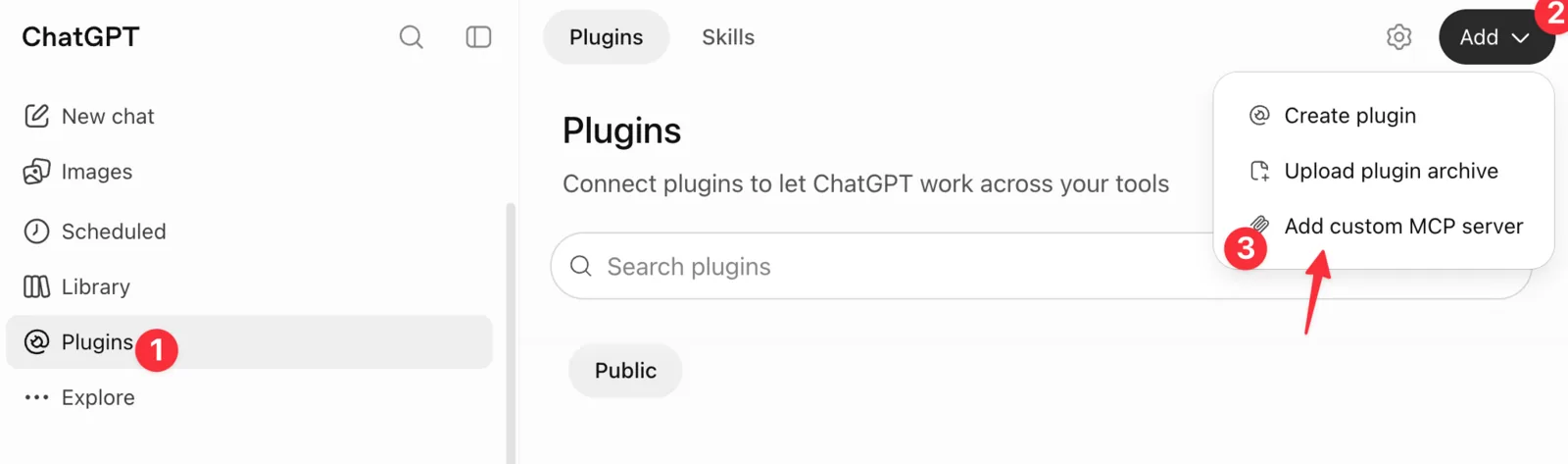
Open Plugins from the ChatGPT sidebar (① in the screenshot above), click Add (②) in the top-right corner, and choose Add custom MCP server (③).
ChatGPT only supports remote MCP servers here - a server reachable over public HTTPS. There is no way to point it at a local process, which is exactly why ogdynamic ships its canvas server at a public URL.
Step 2: Enter the MCP Server URL and Authentication
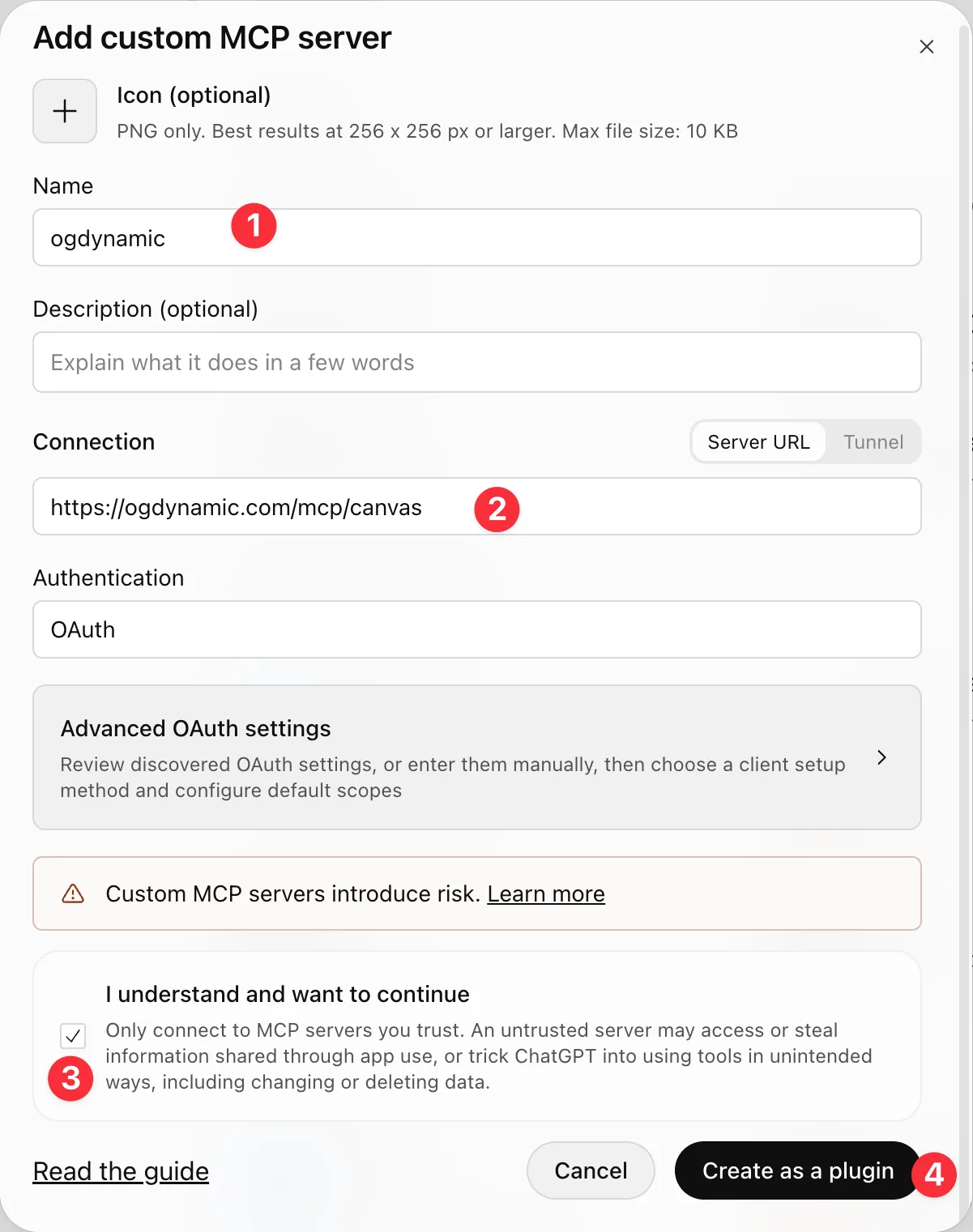
The Add custom MCP server dialog asks for a few fields:
- Name (①) - what appears in your plugins list. We used
ogdynamic. - Server URL (②) - where the server accepts MCP requests. For ogdynamic that is
https://ogdynamic.com/mcp/canvas. - Authentication - set to OAuth; ChatGPT detects this from the server's OAuth discovery metadata.
ChatGPT also shows a warning that custom MCP servers introduce risk, and asks you to confirm "I understand and want to continue" (③) - a sensible checkpoint before connecting anything. Click Create as a plugin (④).
Step 3: Connect the Plugin and Authorize with OAuth
Creating the plugin does not connect it yet. ChatGPT shows a consent dialog:
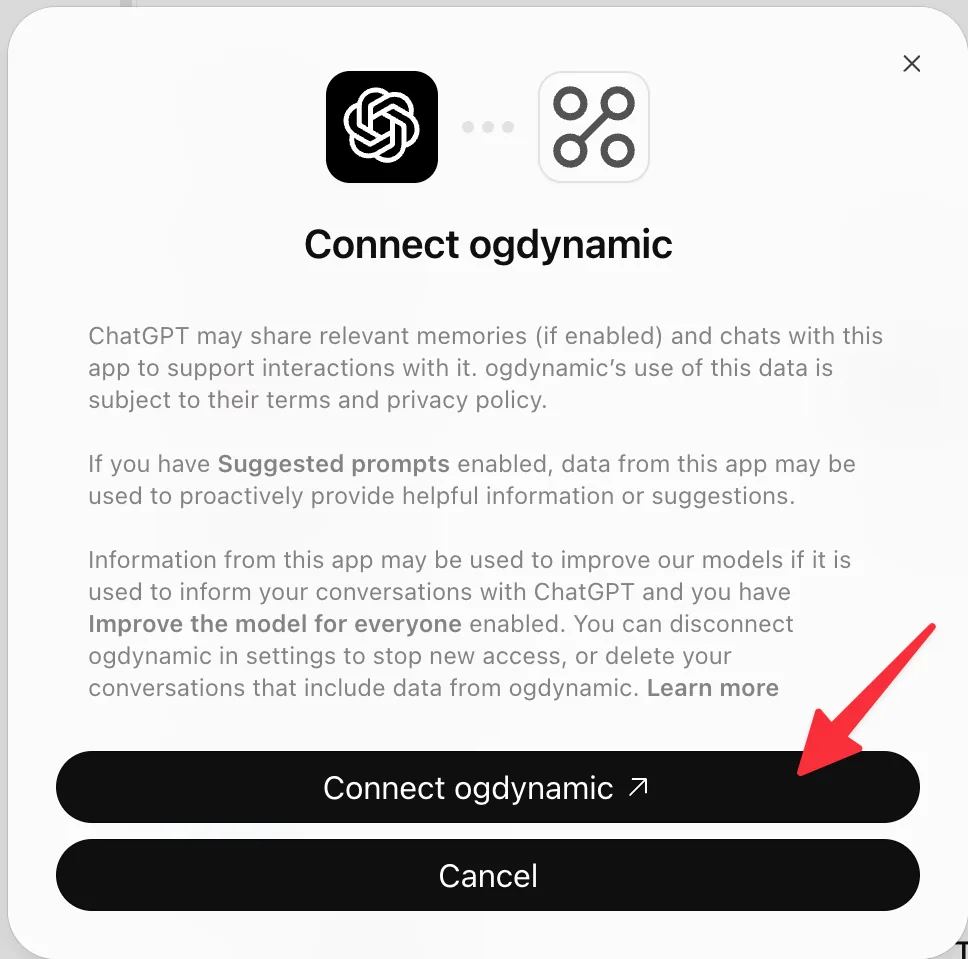
Click Connect ogdynamic. That opens the server's own consent screen in your browser:
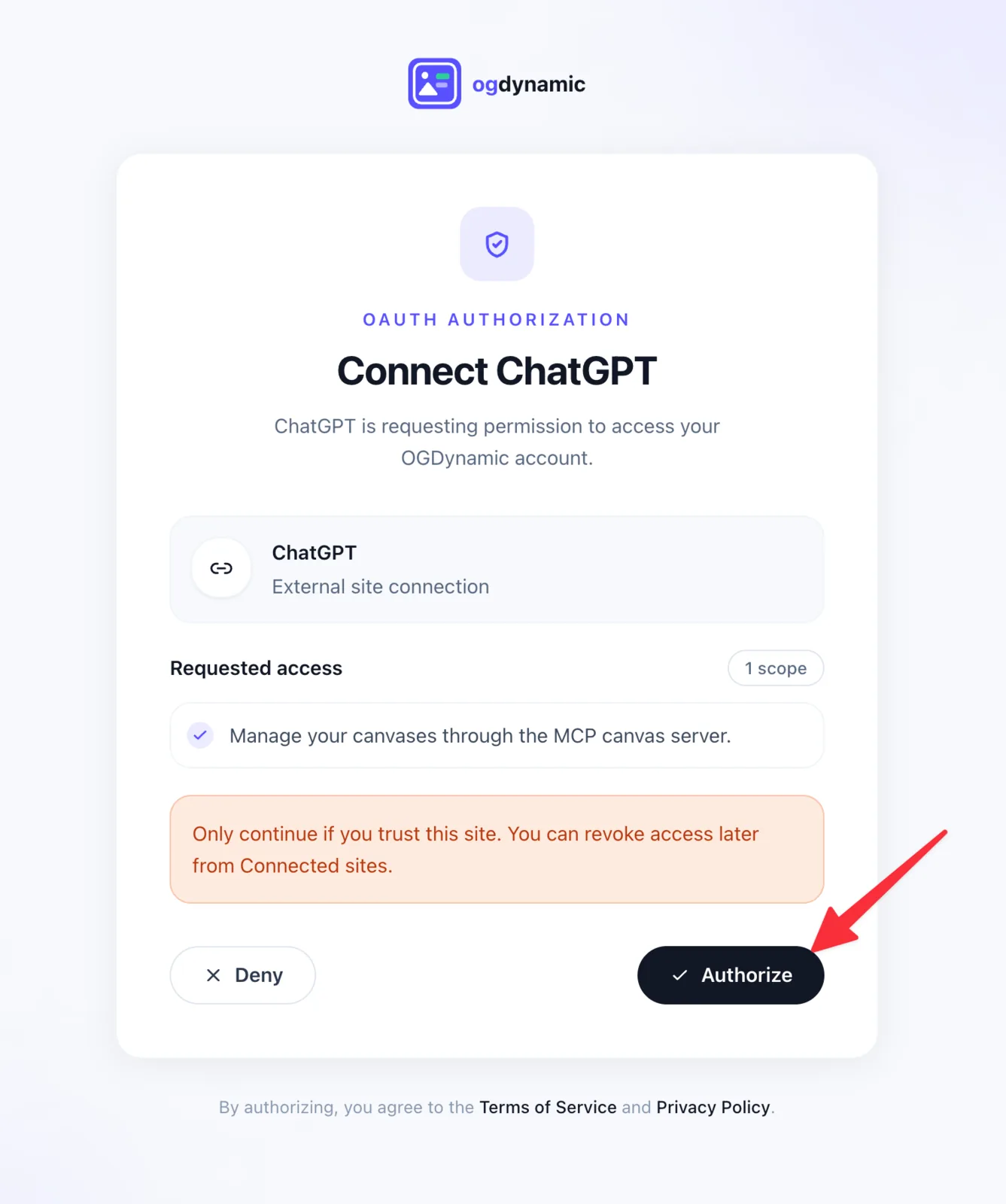
This is the ogdynamic OAuth authorization page - the same screen you would see for any OAuth-powered site connection. It shows exactly what ChatGPT is requesting: Manage your canvases through the MCP canvas server, one scope, nothing broader. It also reminds you that you can revoke access later from Connected sites. Sign in and click Authorize.
Step 4: Confirm the ogdynamic Plugin Is Installed
Back in ChatGPT, the plugin now appears under Installed on the Plugins page:
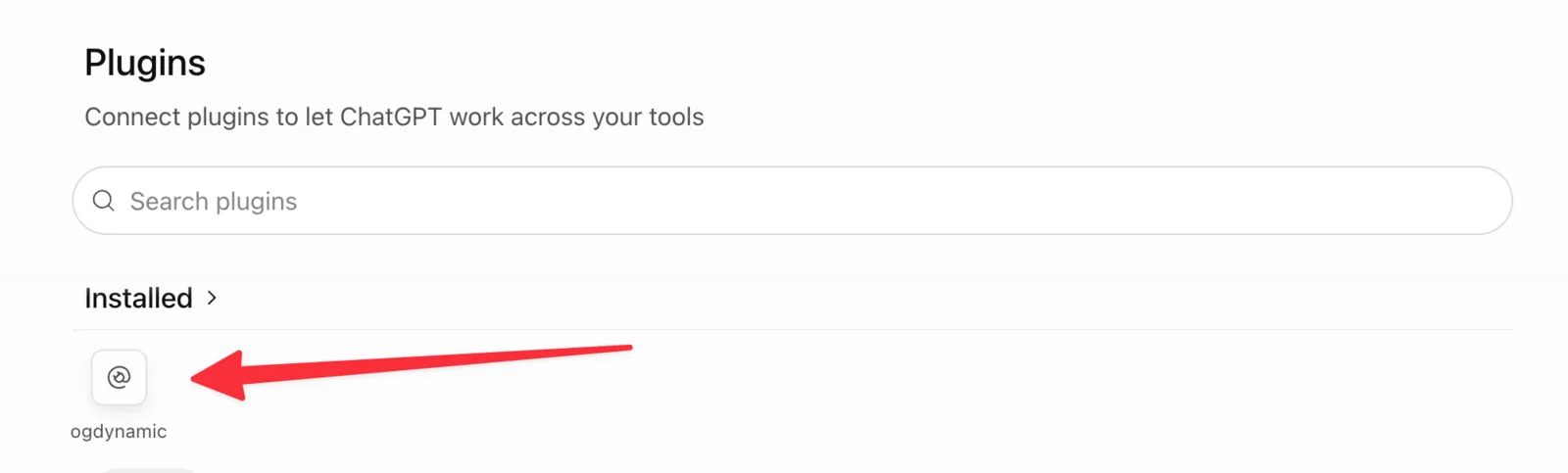
That is the setup complete - the plugin carries the server's full toolset: browse templates, create and update canvases, publish renders, and more. The same ten tools the ogdynamic server exposes to any MCP client; the Claude walkthrough lists them in a table if you want the full inventory.
Step 5: Invoke the Plugin with @ogdynamic
Plugins are not always-on. To use one, type @ in the composer and pick the plugin - the mention applies to that message:
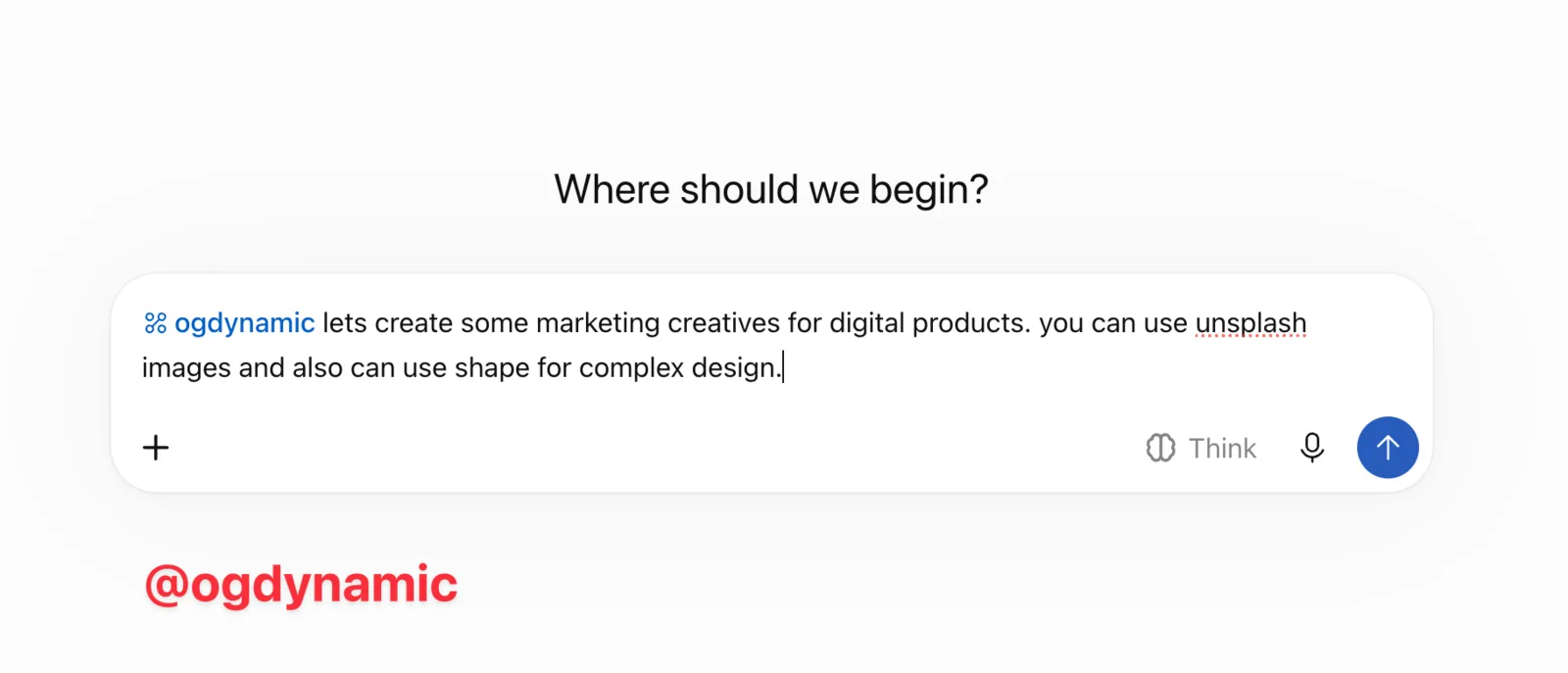
@ogdynamic lets create some marketing creatives for digital products. you can use unsplash images and also can use shape for complex design.
Before ChatGPT runs anything that changes data, it shows a confirmation with a plain-language description of the action:
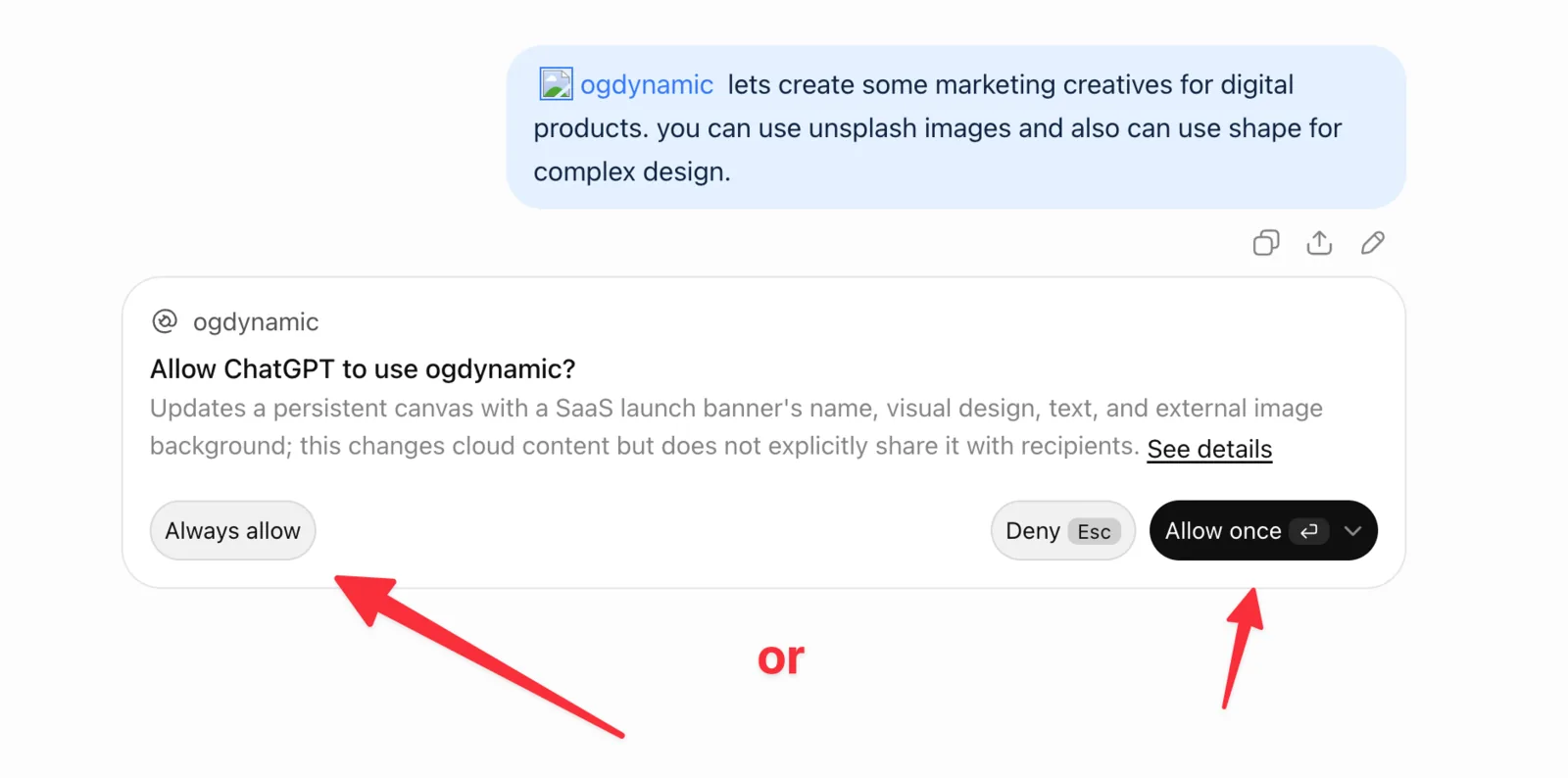
Here ChatGPT is about to update a canvas with a banner's name, design, and text, and says so in one sentence. You can Deny, Allow once, or Always allow - so a first session can stay gated, and a trusted setup can stop asking.
Step 6: Put ChatGPT to Work
What follows is a real design session. ChatGPT clarifies direction instead of guessing - it asks for the product category, visual style, and deliverable type in a structured form:
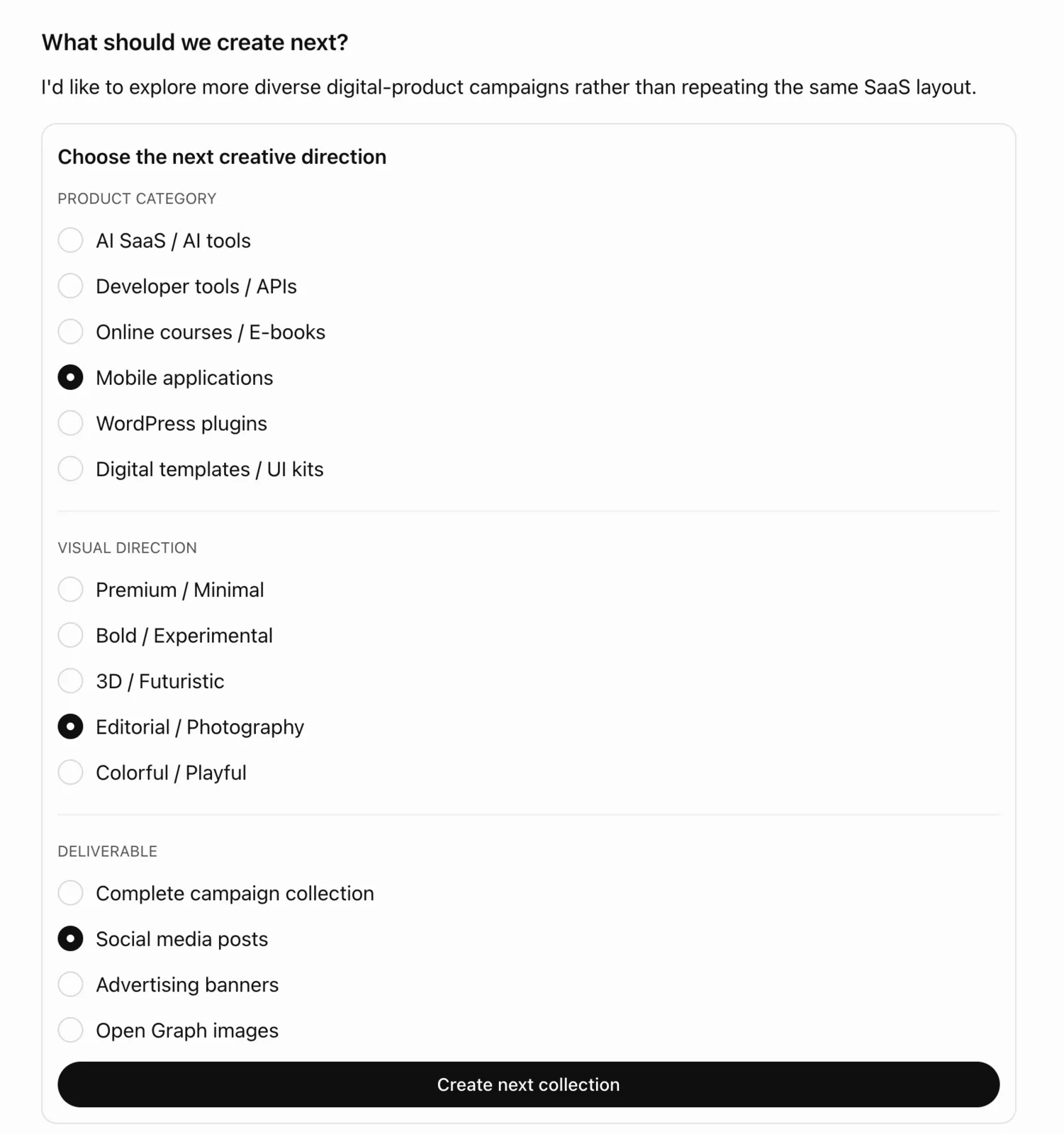
Pick your answers - mobile applications, editorial photography, social media posts - and click Create next collection. ChatGPT then works against your real ogdynamic account: reading templates, creating canvases, filling layers, and publishing renders.
And here is one of the finished designs, open in the ogdynamic Studio editor:
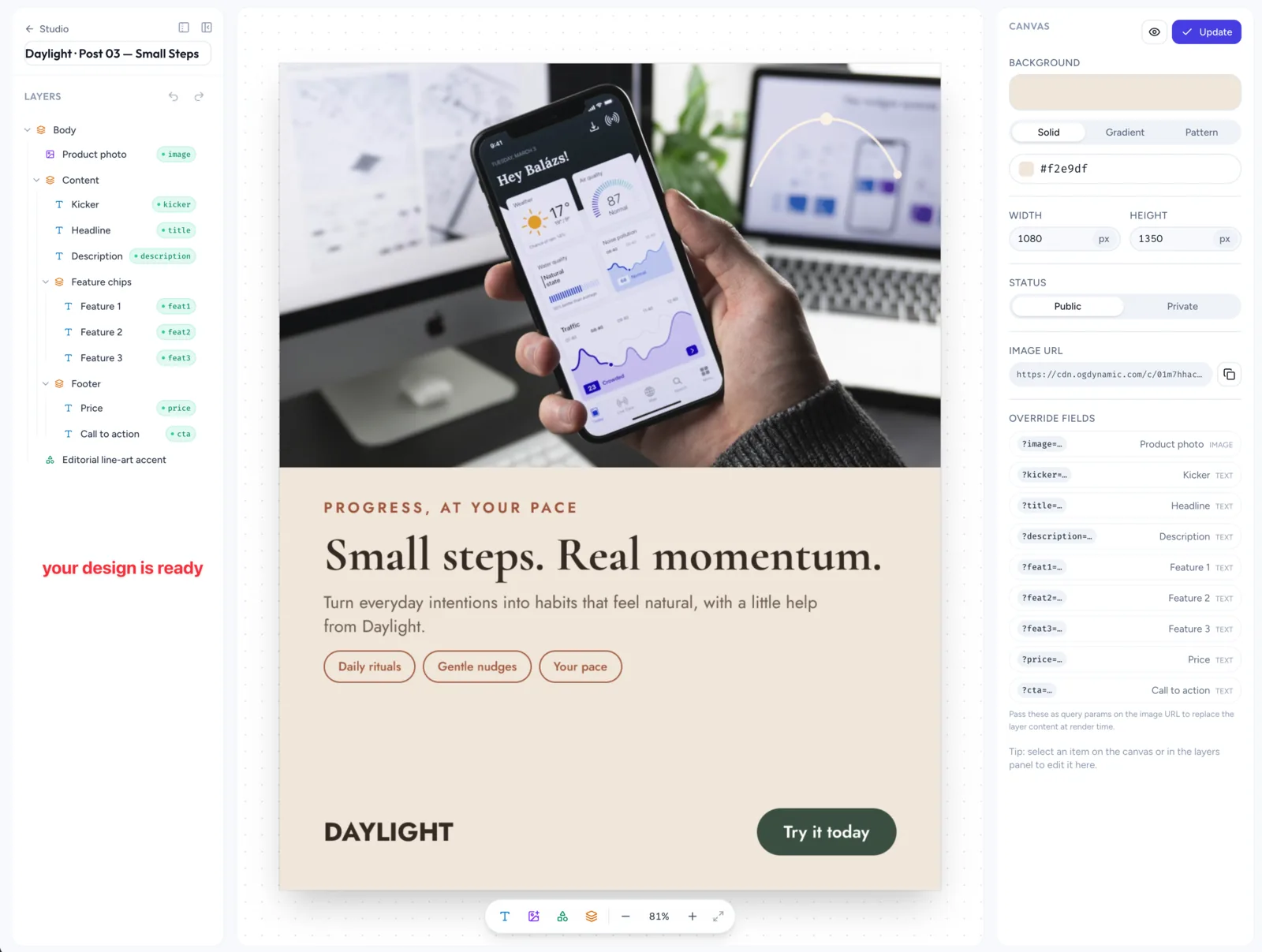
A 1080×1350 social post - kicker, headline, feature chips, footer, CTA - built from a template with a real Unsplash photo, every layer editable in Studio and the published image available as a CDN URL. The same flow works for OG images on blog posts, product cards, or any other size your templates support - see the OG image size guide if you are choosing dimensions.
How MCP in ChatGPT Compares to Claude
We documented the same integration for Claude. The server side is identical; the client side differs in a few ways worth knowing:
| Claude | ChatGPT | |
|---|---|---|
| Where you add it | Settings → Customize → Connectors | Plugins → Add custom MCP server |
| What it is called | Custom connector | Plugin |
| How it is invoked | Available in chats | @ mention, per message |
| Tool permissions | Per-tool allow / ask / deny switches | Per-action Allow once / Always allow |
| Companion skill | Installable skill plugin (marketplace) | Relies on the server's tool descriptions |
Same server, same OAuth, same tools either way - pick the client that matches where you already work.
What Happens Under the Hood
The whole integration is standard OAuth, which is why nothing above required a config file:
- ChatGPT reads the server's OAuth discovery metadata and registers itself dynamically (DCR) - no manual client IDs.
- You approve a scoped request (
Manage your canvases through the MCP canvas server) on the consent screen, and ChatGPT exchanges an authorization code with PKCE for tokens. - Every tool call carries that token, and the server enforces the
mcp:usescope on its end - so the tokens can do exactly what you approved and nothing more.
One ChatGPT-specific detail: after you add a plugin, ChatGPT works from a frozen snapshot of the server's tools. If the server adds or changes tools later, re-add the plugin (or refresh it) so the snapshot updates.
You can revoke the connection at any time: remove the plugin in ChatGPT, or delete the site under Connected sites in your ogdynamic account.
Troubleshooting Common ChatGPT MCP Issues
The plugin is not in the @ list. Adding is not connecting. Finish the Connect ogdynamic → Authorize flow first (Step 3), and confirm the plugin shows under Installed (Step 4).
The OAuth screen loops or fails. Make sure your browser allows pop-ups for ChatGPT, and that you sign in to the same ogdynamic account you intend to authorize.
ChatGPT says a tool call is denied or blocked. Workspace settings control who can create and use MCP plugins, and some high-risk write actions can be blocked outright. Check your workspace's plugin permissions, then retry the action.
The tool list looks stale. ChatGPT freezes a plugin's tools when it is created. If the server ships new tools, re-add the plugin so ChatGPT re-scans them.
ChatGPT can't download the rendered image. Some environments block outbound requests to image hosts, so ChatGPT can't fetch the PNG to inspect it - the canvas itself is still created and the URLs still work. The same thing happened in the Claude session we documented, and the designs were fine.
FAQ
Does ChatGPT support remote MCP servers?
Yes. ChatGPT supports remote MCP servers over public HTTPS as custom plugins. You add one under Plugins → Add custom MCP server by pasting the server's HTTPS URL - no local process or config file needed. Local (stdio) servers are not supported directly.
How do I add an MCP server to ChatGPT?
Open Plugins, click Add, choose Add custom MCP server, enter a name and the server's HTTPS URL, keep OAuth authentication, tick the risk acknowledgment, and click Create as a plugin. Then connect the plugin and sign in through the server's OAuth consent screen.
Is integrating MCP with ChatGPT free?
Adding custom MCP servers requires a ChatGPT plan whose workspace allows custom plugins. Per OpenAI's documentation, full MCP support - including write actions - is available on Business, Enterprise, and Edu plans, while Pro can connect with read-only permissions. The ogdynamic canvas server itself is free to connect with an ogdynamic account.
Why does ChatGPT ask "Allow ChatGPT to use ogdynamic?"
That confirmation appears before any write or modify action. It states, in plain language, exactly what the tool is about to change - for example, updating a canvas's design. You can allow once, always allow, or deny, so writes stay under your control.
Is my ogdynamic account data safe with ChatGPT?
Access is granted through OAuth with a single scope, shown on the consent screen before you approve it. Write actions require an explicit confirmation in chat, all access is revocable in one click from ChatGPT's plugins or ogdynamic's connected sites, and the server only ever operates on your own account.
Can I connect the same MCP server to ChatGPT and Claude?
Yes - MCP is an open protocol, so the same URL (https://ogdynamic.com/mcp/canvas) works with any MCP-capable client. We walk through the Claude side in How to Integrate MCP with Claude; the server, OAuth scope, and tools are identical.
Do I need to write code to use MCP with ChatGPT?
No. The entire integration is clicking through the Plugins UI: add the server URL, connect, authorize. The first tool call is as simple as typing @ogdynamic and describing what you want.
Wrap-Up
Integrating MCP with ChatGPT comes down to three moves: add the server URL as a custom MCP server plugin, authorize through OAuth, invoke it with an @mention. From then on, ChatGPT works directly against your account - reading real templates, building real canvases, and returning real, publishable image URLs.
If you want to try this exact flow, create an OG image with ogdynamic, or browse the integrations hub for other ways to wire dynamic images into your stack.